To track B2B leads in GA4, send one generate_lead event after your website accepts a qualifying enquiry form. Check that the event fires once in Google Tag Manager (GTM) Preview and appears in GA4 DebugView. Mark it as a key event if the enquiry is important to your business. Use your customer relationship management system (CRM) to track which enquiries sales actually qualifies.
Start with one form, such as a quote request, and define success with the team that receives the lead. If the form provider accepts the request before a separate CRM sync, track the confirmed website intake and check the CRM handoff separately.
When should a B2B website fire GA4’s generate_lead event?
Fire generate_lead when your backend or form provider confirms an accepted enquiry. A quote request, demo request or sales enquiry can meet that definition. Agree which forms count before adding the tag. Keep newsletter sign-ups, careers applications and support requests separate if they serve different goals.
Google lists generate_lead as a recommended event for form submissions or requests for information. Once you verify the event in your property, an Editor or Administrator can mark it as a key event under Admin → Data display → Events. Find it in Recent events and select the star. Record the date you enabled it so the team can interpret comparisons across the change.
How do you separate a successful submission from a button click?
Attach the lead event to the form’s confirmed success response. A click tells you someone tried to submit. The form can still fail validation, receive a server rejection or lose its connection before the request reaches the backend.
If you control the form, ask your developer to push a data layer event after the application confirms acceptance. For example, push { event: 'lead_accepted', form_id: 'quote-demo' } to window.dataLayer. In GTM, use a Custom Event trigger for lead_accepted, and attach a GA4 Event tag configured to send generate_lead. The two names are intentional. One is your site's success signal and the other is the event GA4 receives.
For an embedded form, check the provider’s documented success callback for the specific form. A thank-you page can work when only a confirmed submission triggers it and reloads or direct visits cannot count again. Google’s enhanced measurement form events can help you review interactions. Keep form_start and form_submit separate from the accepted-lead count.
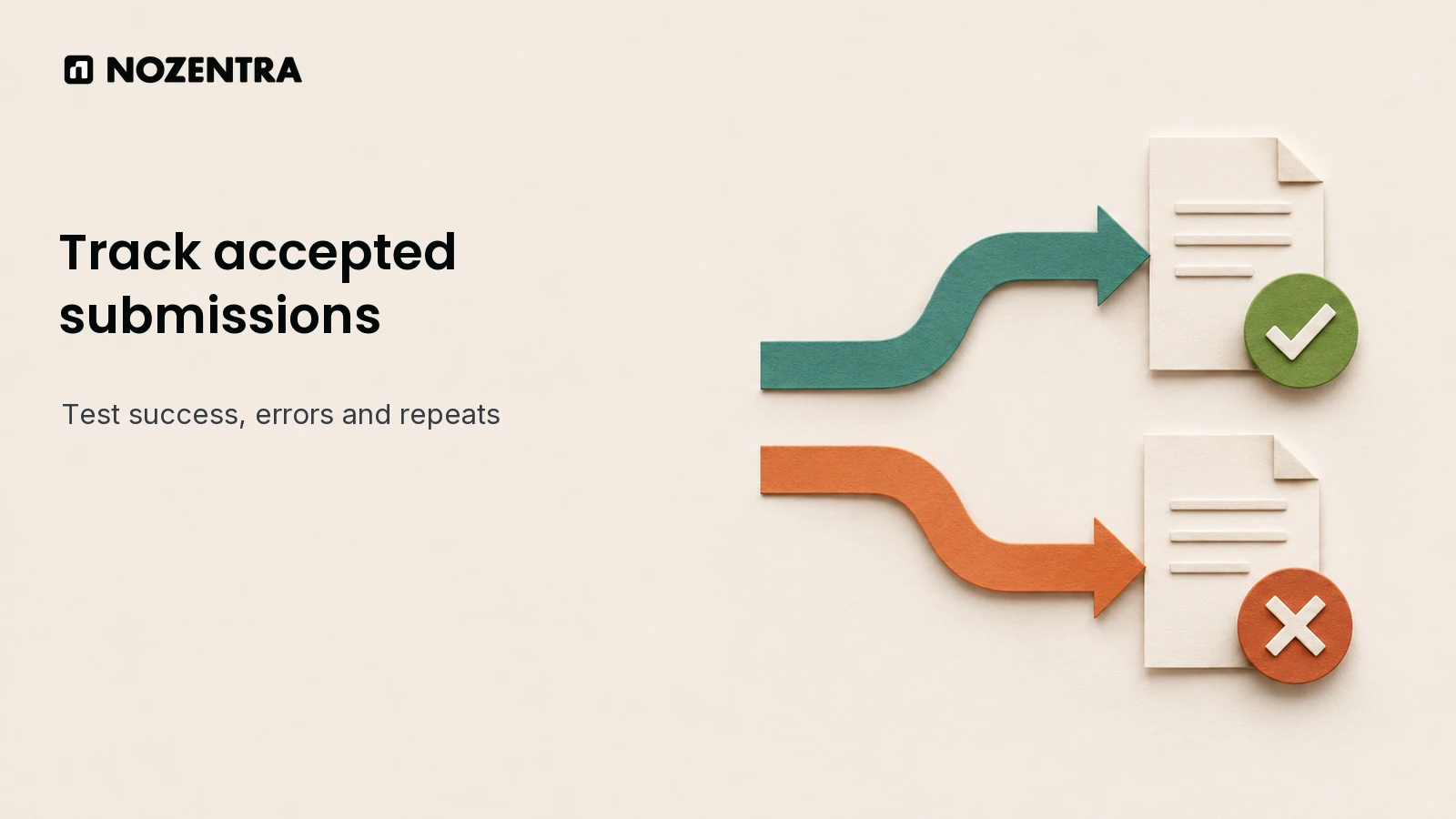
Copyable test matrix for a quote form
We ran this matrix on 23 November 2026 with a synthetic quote form in Chromium. A local endpoint accepted a form containing the dummy project code DEMO-QUOTE and saved one row per submission ID in a mock CRM. The browser then pushed an event to its local data layer. The demo used generate_lead directly as the local event name. It exercised the trigger logic without connecting to GTM, GA4 or a live CRM.
| Scenario | How to reproduce | Observed local event pushes | Observed mock CRM rows |
|---|---|---|---|
| Accepted request | Enter the dummy project code and submit | 1 | 1 |
| Validation error | Leave the required project field blank | 0 | 0 |
| Server rejection | Enter a code the demo endpoint rejects | 0 | 0 |
| Network error before intake | Block the submission request before it reaches the endpoint | 0 | 0 |
| Repeat submit | Double-click, then retry the same accepted submission | 1 | 1 |
| Simulated analytics consent off | Uncheck the consent control and submit a valid request | 0 | 1 |
Reuse the matrix on staging with your own test form and approved test data. Add a case for a lost response after the backend has saved the lead. In that case the CRM can already have a row, so retry the same submission ID and check that the backend returns the existing result. The local network case above only tested a failure before intake.
How do you verify a lead event in DebugView?
Make one successful test submission in debug mode. Then open Admin → Data display → DebugView, select your test device and check that one generate_lead appears with the expected parameters. Use a test property or approved staging setup so the test does not distort business reporting.
Connect your staging page to GTM Preview and check that Tag Assistant shows the success signal followed by a single GA4 Event tag. Complete the failure and repeat cases on the same form.
In GA4 DebugView, open the event to inspect its parameters. Look for the agreed form label, such as
quote-demo, and check the outgoing payload for unexpected fields or URLs.If the tag fires in Preview but the event is absent in DebugView, check the destination measurement ID, the debug device, your test browser's privacy settings and the consent state. Google notes that privacy controls or an analytics consent choice can prevent events from appearing in DebugView. Verify the actual test configuration before changing the trigger.
If tracking passes but enquiries have still fallen, use the separate guide to diagnosing a conversion drop when rankings hold steady to check the rest of the funnel.
How do you prevent duplicate events and keep personal details out of Analytics?
Give the lead event one trigger and make retries reuse the same submission ID on the backend. Allow a single analytics push for each confirmed submission. Keep the submission ID and contact details in your approved intake systems, and send an allowlist of analytics parameters such as the fixed form label.
Disable the submit control while the request is pending, then enforce uniqueness on the server so repeated requests cannot create a second lead. Keep the same ID when retrying after a timeout. Check that only one integration sends generate_lead for that acceptance. A plug-in, a GTM tag and a thank-you rule can otherwise count the same enquiry. The demo’s in-memory guard covered repeats on the same page. Test reloads, back navigation and separate tabs in your own setup.
Google’s guidance on avoiding personally identifiable information covers information sent in events and URLs. Review the event payload, page URL, referrer and confirmation redirect for names, emails, phone numbers and free-text answers. Check other triggers and variables too, since removing a field from the lead event does not remove it from every tag on the page. Keep personal information out of the data layer used by analytics tags and let tags follow your approved consent settings.
How do you reconcile recorded website leads with qualified leads in a CRM?
Compare GA4’s generate_lead event count with accepted CRM enquiries for the same form, intake dates and time zone. Then count which of those CRM enquiries meet the sales team’s qualification criteria by a stated review date.

GA4 event count records how often Analytics received
generate_lead. Use the event count for this check. Google’s Lead acquisition report defines New leads as unique users with that event, so multiple submissions from one user can produce different totals.Accepted CRM enquiries are the unique website requests your intake process recorded. Apply the same form scope and remove known test records and duplicates according to a documented rule. If you exclude spam after intake, show how many you removed.
Qualified CRM enquiries are the accepted requests in that cohort that meet your criteria, such as service fit and a confirmed business need. Set a review date and keep pending cases visible, since recent enquiries may still be awaiting a decision.
For example, a synthetic reporting week might show 38 GA4 events, 42 accepted CRM enquiries and 15 of those CRM enquiries qualified at the review date. The four-count difference tells you to investigate the intake and tracking paths. Check form filters, time zones, test exclusions, consent, blockers and duplicate publishers. Calculate the CRM qualification share from 15 of 42 and keep it labelled with the review date. For a separate session-based measure, see how website conversion rates are defined.
Where you have an approved integration, you can send the separate qualify_lead event when a CRM status meets the agreed criteria. Validate any server-side implementation against Google’s Measurement Protocol documentation and keep the CRM as the record of sales outcomes.
If you need help checking a live form, Nozentra's CRO and analytics service can review the success trigger, event payload and CRM handoff.