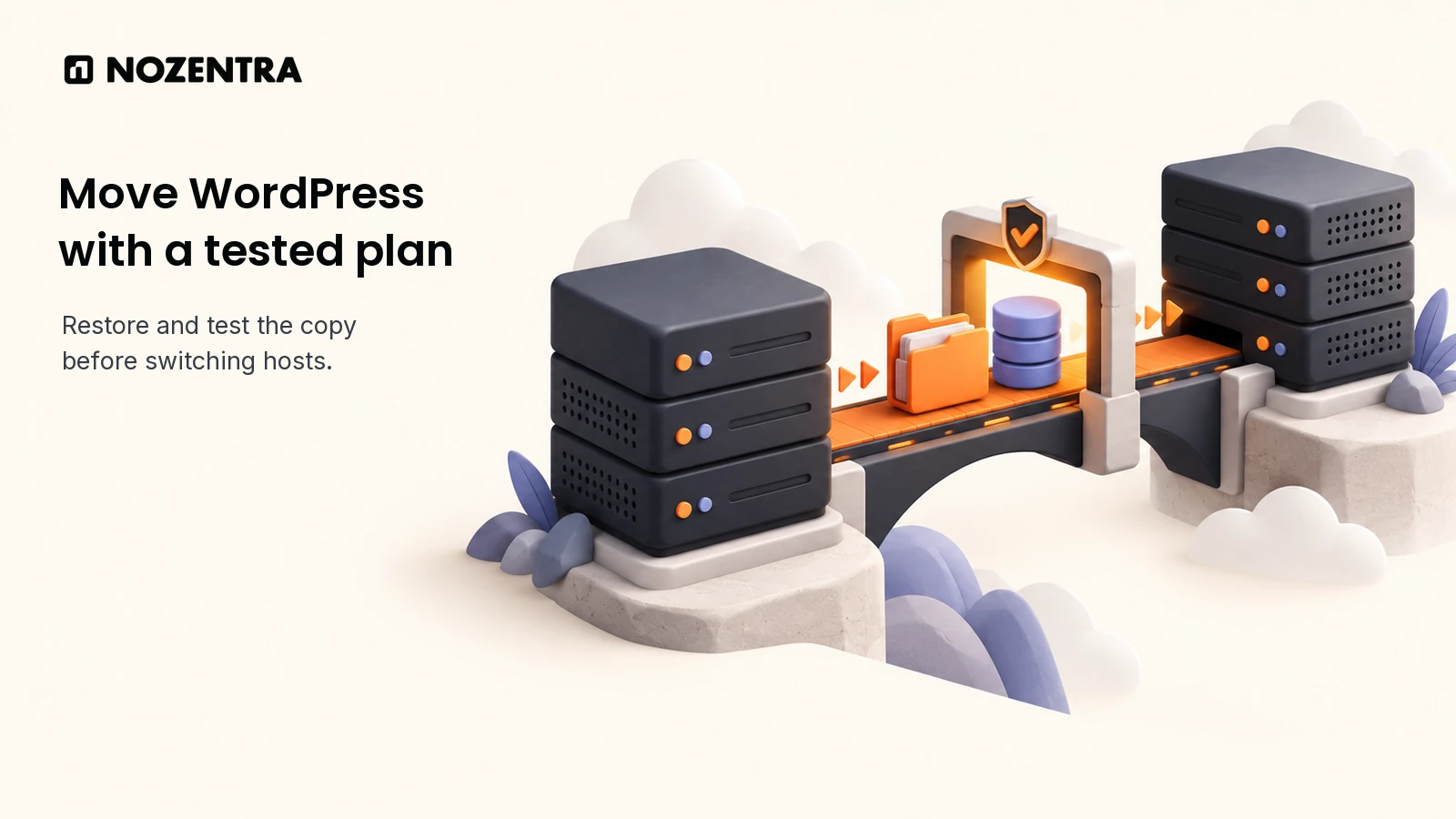
To migrate a WordPress site, back up its files and database, restore them on the new host, test the destination privately, synchronise the latest changes and only then switch the website's DNS records. Keep the old host available during the transition and preserve your public URLs, redirects and indexing settings. That sequence reduces avoidable disruption, although no migration process can guarantee unchanged traffic or rankings.
This guide focuses on changing hosting while keeping the same domain and page addresses. A new domain, redesigned URL structure or different CMS adds a separate migration task. It also includes findings from a synthetic WordPress staging rehearsal performed for this article on 31 October 2026. No company or client analytics, private queries or customer records were used.
How do I move my WordPress site to a new host?
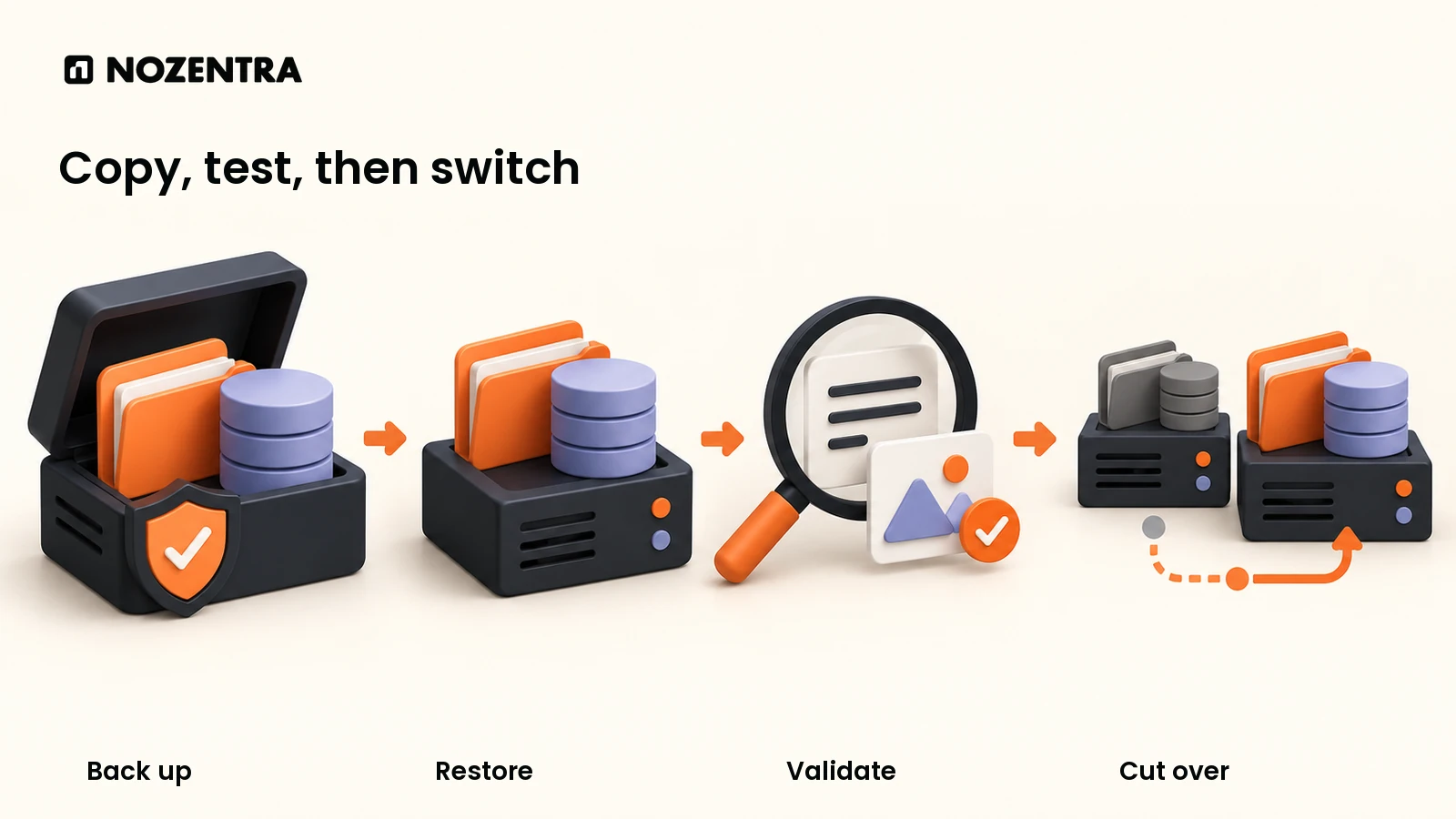
Move the complete installation to a prepared destination, prove that the copy works, then transfer live traffic after a final synchronisation. Treat the first successful import as a testable copy, rather than the end of the migration.
Start with a short WordPress migration checklist that identifies what must survive the move:
| Before the move | What to record or prepare |
|---|---|
| Scope | Final domain, HTTPS addresses, permalink structure and any excluded applications |
| Access | Old and new hosting, WordPress, DNS, CDN and backup recovery access |
| Content | Pages, media, custom content types, users and relevant plugin data |
| Dependencies | PHP/database compatibility, scheduled jobs, mail, external storage and integrations |
| SEO | Important URLs, redirects, canonicals, sitemap and Search Console verification |
| Recovery | Consistent backup, restore procedure, launch owner and rollback conditions |
1. What exactly are you moving?
Define the boundaries before copying anything. Hosting, domain registration, DNS, email and a CDN may be supplied by different providers. Moving the website does not automatically move its mailboxes or domain registration.
List the functions that matter: a contact form, member login, search, downloads, bookings or checkout. Agree on a quieter launch window using your own business activity. For an international site, specify the time zone so colleagues in the UK, US, UAE and Pakistan understand the same cutover time. Avoid combining an unnecessary redesign or major plugin upgrade with the host change, because each extra change makes a fault harder to trace.
2. What should the backup contain?
Create a recoverable copy of both the database and the files, taken as a consistent pair. The database holds content and settings; the files include themes, plugins and uploads. Check for custom files, hidden configuration and anything stored outside the standard WordPress folders. WordPress's backup guidance explains why saving just one half is insufficient.
Keep a protected copy outside the public website directory and outside the hosting account you may later cancel. Verify that the archive opens, contains the expected material and can be restored into a test environment. A download completing is weaker evidence than a successful restore. Do not mistake Tools → Export for a full-site backup: a content export is useful for content transfer, but it does not package the complete installation.
3. How do you prepare the new host?
Confirm that the destination supports your site's PHP version, database requirements, extensions, storage and upload sizes. Ask the host about its supported migration method, preview access, HTTPS certificate setup and recovery options. Match the application requirements before moving the live domain.
Prepare the correct web directory and database where the chosen method requires them. Record the DNS zone before making changes. If you intend to lower the web record's TTL, do it early enough for the previous cached TTL to expire. This is preparation for the switch, not an instruction to point visitors at an empty server.
4. How do you restore the site safely?
Use the destination host's documented migration workflow, a compatible WordPress migration plugin or a controlled manual transfer. A manual move normally involves copying the files, importing the database and configuring the destination database connection in wp-config.php. The WordPress migration handbook distinguishes a same-address server move from a change of domain or URLs.
For a manual transfer, confirm the database name, user, password and host supplied by the destination. Carry across necessary redirect and rewrite rules using the new server's supported configuration. An Apache configuration file is not automatically an Nginx configuration. Keep credentials and backup archives out of public download locations.
5. How do you test a WordPress staging site?
Test the destination before changing public DNS. Use the host's preview facility or a carefully scoped local hosts-file override, which directs your computer to the new server while other visitors still reach the old one. Check that the preview actually reaches the destination, rather than redirecting you back to the live host.
Protect a temporary staging hostname with access controls. A noindex setting concerns indexing; it does not make private content confidential. Prevent the clone from sending real customer emails, running live payments or repeating scheduled jobs. Then check representative pages, media, navigation, login, forms and any business-critical integrations using controlled test data.
If a temporary hostname has been written into content or settings, check those references before launch. Changing the main WordPress address alone may leave custom values behind. A serialization-aware tool such as WP-CLI search-replace supports a dry run before changes. Take a backup, review the scope and preserve GUID identifiers. Do not run a blanket SQL replacement simply because the server changed.
6. When should you synchronise the latest changes?
Perform a final synchronisation after rehearsal and before switching traffic. The original site may have received edits, uploads, enquiries or orders since the initial backup. Your first copy does not automatically contain those later changes.
Agree on a short pause for the affected writes, take the final consistent copy, restore or synchronise it using the supported method, and repeat the critical checks. Identify which system is allowed to accept new writes during the transition. A busy shop or membership site needs a deliberate database and order-handling plan, rather than two independent writable copies. WP Engine's ecommerce migration guidance illustrates the importance of final migration timing before DNS is switched.
7. When is it safe to change DNS and enable the live site?
Switch only after the intended destination passes the release checks. Confirm that HTTPS can serve the final hostname correctly, that canonical URLs use the final public addresses, and that the intended live pages are free of staging access or indexing blocks. Follow the host's certificate and preview procedure; do not dismiss browser certificate warnings as a normal launch step.
Update the required website records, including relevant IPv6 records if present, using the provider's instructions. Preserve mail and verification records. Changing nameservers replaces the DNS service for the zone, so confirm the complete zone first if that is genuinely required. Purge relevant caches and verify the public hostname from more than one network or resolver. Seeing the new site on your laptop alone does not prove every visitor has switched.
8. When can you retire the old host?
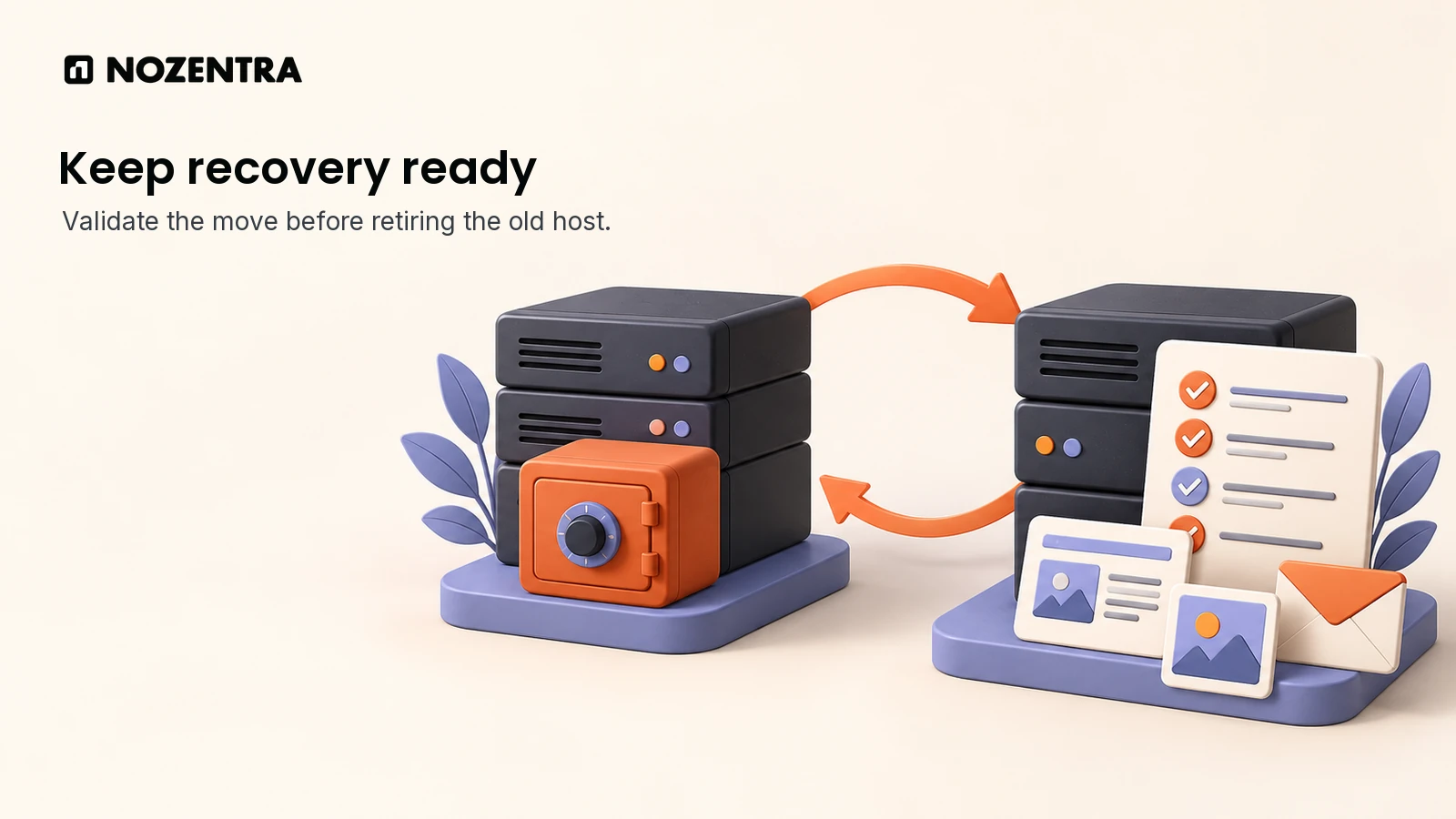
Retire it after the new environment is stable and evidence shows the transition has completed. Keep the old host and recovery copy available while you monitor both environments. Do not rely on a universal countdown: cached DNS, integrations and overlooked dependencies may behave differently.
Check errors, real business functions and incoming requests before cancelling. Remove temporary migration packages, unnecessary access and test-only configuration when they are no longer needed. Keep the recovery material according to your own retention requirements.
Can I migrate a WordPress site without downtime?
You can often keep pages available by preparing the new host while the old one continues serving visitors. However, “without downtime” should be a planned objective, not a guarantee. Certificate problems, incompatible code or inconsistent writes can still disrupt the site.
Distinguish two questions: can visitors read pages throughout the switch, and can new data be recorded safely? A brochure site with paused editing is simpler than a shop taking orders every minute. If visitors reach both servers during DNS transition, two writable databases can diverge even while both homepages load perfectly.
For a transactional site, ask the migration owner how writes will be paused, routed or synchronised, how queued jobs will be handled and what happens to transactions during rollback. If a brief maintenance window is needed to protect data, communicate it clearly. A credible migration plan explains that trade-off rather than promising a universally invisible switch.
Will migrating my WordPress site hurt my SEO?
Changing the host does not require changing your public URLs, but implementation mistakes can affect discovery, access and user experience. Protect the existing content and search signals, then monitor the move. Faster hosting alone does not guarantee a ranking improvement.
For a host-only move, keep page addresses, canonical URLs, useful metadata and working redirects consistent. Do not introduce a new redirect for every unchanged page or submit a domain-change request just because the underlying server changed. If you also change domains or paths, create a separate URL-mapping and redirect plan.
Before launch, retain a private baseline of important landing pages and normal search activity. After launch, compare equivalent periods and investigate significant changes alongside error logs and indexing checks. Keep those account records private. In Search Console, retain property verification, inspect representative URLs and check that the sitemap remains accessible and lists the intended canonical addresses. Re-submit it if a changed location or diagnosed issue makes that useful.
Google's guidance for hosting changes without URL changes covers destination testing, DNS preparation and monitoring. It also notes that crawling can fluctuate temporarily after a hosting change. A successful cutover is therefore the start of observation, not proof that traffic will remain identical.
Should I use a plugin or migrate WordPress manually?
Use the method that supports your site's size, configuration and recovery needs, with a migration owner who can test it. A supported host-assisted move is often practical when you want the destination provider to handle its own environment. A plugin can simplify a standard installation; manual work offers control when a developer needs to handle unusual requirements.
| Option | Useful when | What to confirm |
|---|---|---|
| Host-assisted migration | The destination offers support for your source setup | Included scope, final-sync handling, exclusions and who owns post-launch fixes |
| WordPress migration plugin | A compatible tool can export and restore the complete installation | Current size limits, supported data, destination restrictions and a tested restore |
| Manual files and database transfer | A developer needs control over a large or customised installation | Correct credentials, permissions, serialized data, server rules and rollback steps |
Check current documentation rather than assuming every free plugin has the same limits. WP Engine's migration instructions and TeamUpdraft's manual migration guide illustrate different workflows. They are examples, not a benchmark or a promise that either method fits every installation.
Multisite, external media storage, custom tables and active ecommerce need particular attention. Ask what the chosen tool excludes and how you will verify it. If your real objective is to replace WordPress, read our WordPress, Webflow and Shopify comparison before treating a platform rebuild as an ordinary host change.
What did the staging rehearsal actually show?
The rehearsal showed that a successful initial restore can still be out of date. For this guide, we created two isolated local WordPress environments using the official Playground CLI, PHP 8.3 and SQLite. The fixture contained a sample page, a tiny synthetic image and a serialized custom setting. It contained no company or client data.
We backed up the first environment, then added a second page before restoring the backup into the destination. The original page was present, but the later page was missing. A second export and restore brought the later page across. We also rehearsed restoring the earlier snapshot, which removed that later page again. This is a concrete reason to plan both final synchronisation and data reconciliation after rollback.
The corrected media-fixture check compared the restored file bytes with the source. We also checked the permalink setting and confirmed that switching the local site's search-visibility setting changed its HTML indexing directive. A custom serialized setting retained the source address even though the importer adjusted the site's main address, showing why custom references need inspection.
One further check remained unresolved: an unknown pretty URL returned the homepage with status 200 in this local fixture, while a missing page requested by ID returned 404. We therefore cannot use this rehearsal to approve production rewrite rules or missing-page behaviour. Test those separately on the actual destination.
These were local backup, restoration and configuration checks. They did not test production MySQL hosting, real DNS propagation, certificate issuance, payments, email delivery or search traffic. The first run exposed a fixture-writing error, which was corrected before repeating the media check. This is not a client case study or evidence of a zero-downtime production migration.
What should I check after a WordPress migration?
Check the destination's content, behaviour, search accessibility and business functions through the public domain. Record the result and the person responsible for each unresolved item. Use the same checklist immediately before cutover and again after traffic reaches the new host.
| Area | Evidence to check after launch |
|---|---|
| Content and media | Expected pages and recent updates exist; representative files load correctly |
| URLs and redirects | Important URLs return expected statuses; existing redirects reach the correct final page |
| Missing pages | A genuinely missing URL returns an appropriate 404 rather than a misleading success response |
| HTTPS and mobile | Final hostname has valid HTTPS; layouts, navigation and forms work on mobile |
| Indexing | Intended live pages have no accidental noindex, access barrier or crawl block; canonicals are correct |
| Sitemap and Search Console | Sitemap loads with final URLs; ownership remains verified; representative inspection is healthy |
| Business functions | Controlled form, login, booking or checkout tests reach their intended destinations |
| Infrastructure | DNS, CDN, scheduled jobs and relevant mail records are correct; logs show no new recurring errors |
| Recovery | Backups can be restored; any new writes are protected before a rollback is attempted |
A rollback needs more than pointing DNS back. If the new host has accepted an order or account update, returning to an older database can hide that information. Preserve the new data and have the responsible developer decide how to reconcile it before restoring an earlier state. Investigate a failed check before declaring the move complete.
If you need help defining the migration scope, Nozentra's WordPress development and support page explains the relevant service. After launch, give monitoring, backups and routine checks an owner through a clear website maintenance plan. The useful finish line is a verified, maintainable installation with a recovery path and a clear record of what was tested.